How to Submit the Email Account Request
- Complete Required Fields: Fill in all mandatory fields marked with an asterisk (*).
-
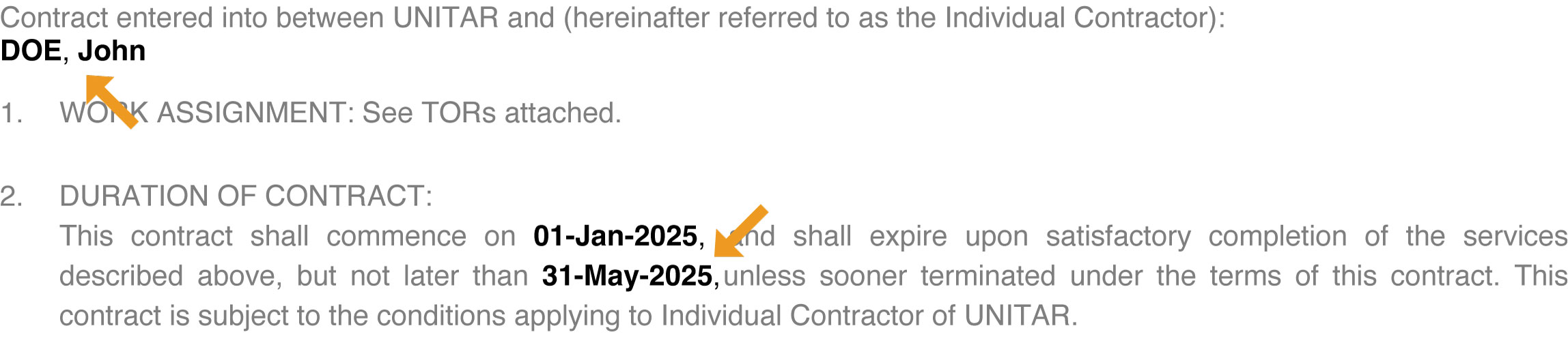
Current Contract Screenshot: Attach a portion (see sample below) of the personnel's current contract. This screenshot must display the personnel's full name as well as
the contract's start and end dates.
- Requester Signature: You, the requester, must sign the request.
- Send for signature: Click "Send for Signature" to send the form to the email account recipient via their private email address.
- Review and Signature: The recipient must review and sign the form.
-
Ticket Status Updates:
- The ticket remains "On Hold" until the form is signed.
- After signing, the status updates to "Open" and I.T. will begin processing.
- Notification of Account Creation: You will be notified once the email account is created.
-
Corrections (if needed):
- If any information is incorrect, the recipient can report the issue.
- You will receive an email with details on what to correct and how to update the form.
How to Submit the Email Account Renewal Request
- Select Email Address: Choose the email address that is about to expire.
- Enter New Contract Information: Provide the updated contract details, such as start and end dates, job title, or location (if changed).
- Complete Required Fields: Fill in all mandatory fields marked with an asterisk (*).
-
Current Contract Screenshot: Attach a portion (see sample below) of the personnel's current contract. This screenshot must display the personnel's full name as well as
the contract's start and end dates.
How to Submit a Website Update Request
- Select Website: Choose whether you want to update the UNITAR Website (unitar.org) or the Event Management System (event.unitar.org).
- Specify the Type of Content: Indicate the category or section of the website that needs updating (e.g., course, news, or page content).
- Fill in All Necessary Information: Provide all relevant details for the update, including text, links, and formatting instructions if applicable.
- Include Files: Attach related files such as images or Word documents using the Attach File button above.
- (A Must) Copy Your Manager: Ensure that your manager is copied in the request.